How to Properly Set Up and Configure Lumabooth : Basics, Equipment, and Basic Settings
Lumabooth (formerly dslrBooth) is a leading software solution for running photo booths at professional or festive events. Whether it’s a wedding, a corporate seminar, or a launch party, Lumabooth’s ease of use and customization options make it the top choice for many service providers. However, to fully leverage Lumabooth’s features, you’ll need thorough preparation beforehand, familiarity with the necessary equipment, and careful configuration of certain settings. In this article, we’ll break down the basics of proper hardware and software setup to ensure that on the big day, your photo booth runs smoothly and delights your clients or guests.
First, we’ll cover how to install Lumabooth and the necessary checks to perform before getting started. Next, we’ll look at the equipment required for a professional photo booth, including the camera and computer. Finally, we’ll explore how to configure the basic settings in Lumabooth (shooting, image quality, print formats), along with some tips for fine-tuning your initial setup.
1. Installation and Initial Setup of the Lumabooth Software
1. Download and Software Version
The first step is to download the latest version of Lumabooth from the official website.
OPEN THE LUMABOOTH WEBSITE BY CLICKING HERE
Then select “Subscribe for Windows”
In recent years, Lumabooth's business model has evolved into a single subscription plan (which includes all the features that were previously sold separately). This means that as long as your subscription is active, you can take advantage of all the Pro features, including AI options, cloud sharing, animated GIF creation, and more.
Why choose the latest version? Successive updates improve stability, fix bugs, and often introduce exciting new features.
System Compatibility: Lumabooth runs on Windows 10 or 11 (64-bit versions). It is essential to keep the operating system up to date to avoid conflicts or compatibility issues.
2. Installation and Activation
The installation is guided: run the downloaded file, follow the installation steps, and then activate your license using the credentials you received at the time of purchase. We recommend completing this process a few days before the event to allow time to address any compatibility issues that may arise.
Switching to French: In the Lumabooth settings, you can select French as the interface language. This makes the software easier to use, especially if you need to train an operator quickly.
Prerequisite Training and Resources: To familiarize yourself with the interface, you can try the trial version or consult the online documentation. If you are completely new to the software, plan a detailed testing session before deploying it in a live environment.
3. Plan for Updates
Windows has a nasty habit of forcing reboots to install certain updates. Be sure to disable these automatic updates for the duration of the event, or install them the day before, to prevent a Photobooth session from being interrupted unexpectedly.
2. The equipment needed for a high-quality photo booth
1. The camera
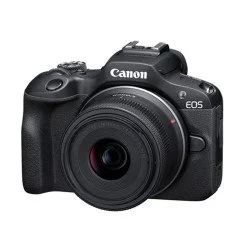
Bizbooth includes the camera most recommended by the supplier in its packages: the Canon R100
Lumabooth is compatible with most recent DSLR and mirrorless cameras (Canon, Nikon, Sony), as well as certain webcams and GoPros.
SLR or mirrorless? For professional use, a mid- to high-end SLR or mirrorless camera is by far the preferred choice, as it guarantees excellent image quality and fast response times.
USB connection: The device is typically connected to the computer via a USB cable. Choose a cable that is long enough and, above all, of good quality to minimize the risk of disconnection.
Power supply for the device: If possible, use a mains power supply (dummy battery) to prevent power outages during the event. Otherwise, make sure you have several charged batteries on hand if the installation takes a long time.
Power Off: Disable the device's automatic power-off feature so that it is always ready to fire.
Focus and Exposure: Before the event begins, you can set the focus manually (fixed focus) by focusing on the area where the guests will be standing. This will help you avoid delays caused by autofocus. As for exposure, M (manual) mode is also recommended if you’re using a flash and the lighting conditions remain constant.
2. The computer
The other crucial component of a photo booth is the computer running Lumabooth.
Minimum requirements: Intel Core i5 processor, 8 to 16 GB of RAM, sufficient hard drive space (several gigabytes to store photos and, if applicable, GIFs or short videos).
Dedicated graphics card: Highly recommended for accelerating AI processing or advanced effects.
Operating system: Windows 10 or 11. Disable the screen saver and hibernation. Any interruption to the PC could stop the photobooth service.
Windows Updates: As mentioned earlier, make sure to complete them before the event to avoid a forced restart at an inopportune time.
3. Lighting
To take sharp, high-quality photos, good lighting is essential.
Studio flash: A studioflash with a diffuser (umbrella, softbox) provides even, soft light. Professional photo booth kits often include a compatible flash that syncs with the camera.
LED lights: They can be used for continuous lighting, but this requires proper exposure settings and a well-controlled space.
Positioning: Place the light source high enough and facing the shooting area to minimize unflattering shadows. Experiment to find the ideal brightness.
4. Photo printer (optional)
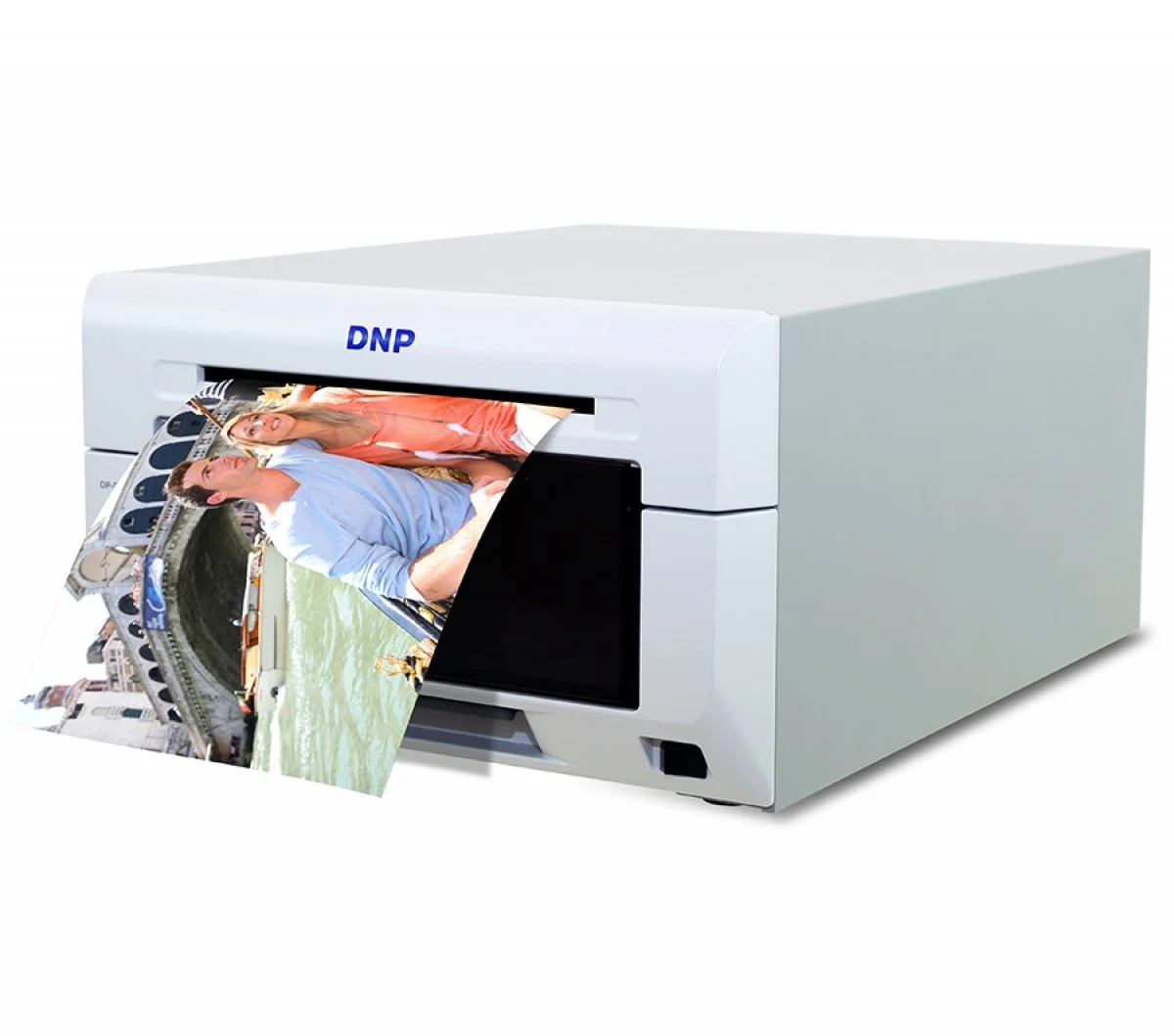
Part number: DNP DS 620 (or Citizen CX 02)
If you plan to offer instant prints, invest in a dye-sublimation photo printer (e.g., DNP, Citizen) or a specialized printer. These offer the quality and speed needed for events.
Standard paper size: 10×15 cm (4×6 inches) is the most common.
Drivers and print quality: Install the drivers before the event, check the ink level (sublimation ribbon), and set the print resolution to at least 300 dpi.
5. Accessories and Interior Design
In addition to your photography and computer equipment, be sure to bring a tripod for your camera, a backdrop (plain fabric or a custom wall), fun props (wigs, frames, signs), and gaffer tape to secure cables to the floor. All of these items will help ensure that your setup runs smoothly and safely.
3. Configuring Basic Settings in Lumabooth
1. Camera Detection and Settings
Once the device is connected to the PC and Lumabooth is open, the software should automatically detect the device.
Live View: Turn on Live View if your camera supports it. This makes framing and focusing much easier.
Shooting Mode: Set the number of shots per session (for example, 3 or 4 photos) and the countdown time between each shot. You can add a message or an alert sound to let guests know that a photo is about to be taken.
Exposure settings: If you set your camera to manual mode, be sure to find the right combination of aperture, shutter speed, and ISO based on the flash or ambient lighting. The key is to maintain consistent exposure from one photo to the next.
2. Resolution and Image Quality
By default, Lumabooth provides files optimized for standard printing (300 dpi). This corresponds to approximately 1200×1800 px for a 10×15 cm print.
Image size in the camera: A modern DSLR can exceed 20 or even 30 megapixels, but it’s often best to stick to a reasonable file size (high-quality JPEG) to speed up transfers.
Filters and Effects: Lumabooth includes a variety of filters (black and white, sepia, Glam effect, etc.). If you plan to use them, test them beforehand to make sure they don’t significantly increase the post-processing time.
3. Template and Print Format
The template is the key element that determines the final appearance of the printed photo.
Choose a format: 10×15 cm in portrait or landscape orientation, or photo booth-style strips (5×15 cm).
Template Editor: In Lumabooth, you can open the editor, which lets you arrange multiple photo frames (for 3 or 4 poses), text, a logo, and more.
Customization: Add the event name, date, a hashtag, and graphics related to the event. If you’re partnering with a brand, include its logo and follow its brand guidelines.
Automatic printing: In the settings, you can specify whether printing starts automatically at the end of each session (and how many copies) or whether it remains a manual process.
PRO TIP: With the x20 Template Pack—whether you get it as part of a Pro Plan or purchase it separately in the Shopbooth—we make your life easier: Just import the template and all you have to do is change the text... It's MAGIC! (And it saves a lot of time.)
4. Tips for Improving Efficiency Right from the Start
Prefer full-screen mode
On the day of the event, set Lumabooth to full screen to prevent guests from accidentally clicking on the Windows desktop or the taskbar. This also creates a more immersive experience.
Pay Attention to the Home Screen
Lumabooth lets you customize the home screen (text, background color, image). A clear message encourages people to tap the screen or start the session. It may seem like a small detail, but a polished presentation makes people more likely to participate.
Stabilize the installation
Make sure all cables are secured, the tripod is firmly set up, and no one is likely to trip over it. Sudden movements could cause the cables to come loose or result in constant blurring in the photos.
Estimate the duration of the event
Storage
If the event is long and you expect a large number of participants, make sure you have a high-capacity hard drive or an external storage solution for regular backups.
Heat
Taking a series of shots with a camera in Live View mode puts a strain on the sensor and can generate heat. Make sure your camera has enough battery life, especially for sessions lasting several hours; it’s best to use a continuous power supply, such as the one found in Bizbooth photo booths.
5. What You Need to Know About the Basics of Lumabooth (formerly dslrbooth)
A successful Lumabooth setup starts with careful preparation. From choosing the camera and computer to configuring the software’s basic settings, every detail matters in providing participants with a smooth and fun photo booth experience.
By following these steps (installing the latest version, setting up the camera, customizing the template, and setting up proper lighting), you’ll lay a solid foundation. This will enable you to move on to more advanced features, such as AI-powered background replacement, instant sharing via QR code, and a wide range of customization options.
The photo booth has become a staple at many events, and Lumabooth is a reliable partner for producing professional-quality photos with a wide range of creative possibilities. With a little practice and a well-oiled setup, you’ll be able to deliver a flawless service that meets the expectations of your clients or guests.
Check out Part 2 on our blog to continue learning how to set up Lumabooth on your photo booth.