DSLR Booth configuration: part 2
Advanced customization in DSLRBooth: templates, AI background removal, and instant sharing

Once you’ve mastered the basics of DSLRBooth (installation, hardware, and general settings), you’ll likely want to take things further in terms of customization and effects. This is where the software really stands out: it offers a comprehensive template editor, an AI feature for removing or replacing the background without a green screen, as well as modern instant-sharing options, such as QR codes.
In this article, we'll look at how to integrate custom templates (such as those from the Bizbooth PRO pack, template packs available on the Shopbooth or any other source), how to configure and take advantage of AI Background Removal to create spectacular photo overlays, and finally how to set up QR code sharing so that guests can leave with their photos on their smartphones just seconds after they’re taken.
1. Create and use custom templates
1. Why use a custom template?

Don't miss out: Our pack of 20 DSLR Booth templates!
The template (or "layout") determines the final appearance of the printed or shared photo. It includes:
The layout of the thumbnails (3 or 4 images)
The text and typography (event name, date, etc.)
Graphics or decorative elements (logos, patterns, frames)
By creating a template tailored to the theme, you give each event its own unique identity. Guests leave not only with a souvenir photo, but also with a keepsake featuring the brand’s visual identity or the couple’s first names.
2. Import an existing template
If you purchase or download a template from a provider (such as Bizbooth PRO, TemplatesBooth, or other creators), you’ll often receive a file that’s ready to be imported into DSLRBooth.
Instructions: In the software’s Template tab, click “Import.” Select the corresponding .dslrbooth file or folder.
Missing fonts: The template may use specific fonts. Be sure to install them in Windows beforehand (double-click the .ttf or .otf font file); otherwise, the layout may be distorted.
3. Editing and Customization
Once the template has been imported, you can edit it in the built-in editor.
Text: Double-click a block to edit its content. Adjust the font, size, color, alignment, and more…
Images and logos: Replace the generic logo with your client’s logo. Make sure it’s in the correct format (transparent PNG for a clean look).
Background colors: You can add a background image or simply choose a solid color.
Save: Save your changes under a new name to preserve the original template.
4. Wide selection of templates
DSLRBooth can display several templates on the screen for guests to choose from (advanced option). This is useful if you want to offer different styles: 5×15 cm or 10×15 cm strip format, color or black-and-white versions, etc. The software will display several selection buttons at the start of the session.
2. Use AI to remove or replace backgrounds
1. Green Screen vs. AI Background Removal
Historically, to place participants into a virtual setting, a green screen (chroma key) was set up. The lighting had to be very even, and the green screen had to be perfectly taut to avoid wrinkles. DSLRBooth still offers this chroma key mode, but the new AI feature (introduced in recent versions) allows you to remove the background without needing a green screen.
Principle: The local algorithm detects people's silhouettes and isolates the subject from the background in near real time.
Advantages: no cumbersome logistics associated with a green screen; potentially more flexible results if the lighting is right.
Drawbacks: AI can make mistakes around the edges, especially if the person is holding a complex prop. Additionally, this requires more processing power, which slows down processing—sometimes significantly—for photobooth computers (since rental machines never come equipped with ultra-powerful, expensive PCs).
2. Setup in DSLRBooth
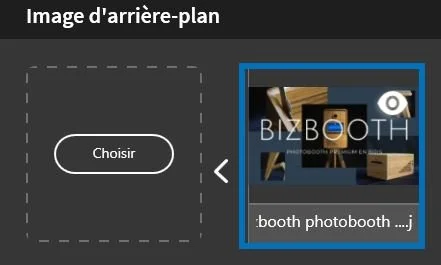
To enable AI Background Removal, go to Settings > Background Removal. Select the AI option (rather than “Green Screen”). Then import the background images you want (landscape, large logo, sponsor graphic).
Multiple backgrounds: You can upload multiple backgrounds for guests to choose from in real time.
Performance: If you have an NVIDIA GPU, processing is faster. On a PC equipped with only a CPU, processing may take longer. It is therefore important to test whether the stream remains smooth during the event.
3. Tips for Better Results
Subject lighting: The more evenly lit your guests are, the more precise the background removal will be. If there is strong backlighting or too much shadow, the AI will have a harder time distinguishing the background.
Distance from the wall: Ideally, leave a little space between the subject and the actual background. This reduces the amount of shadow cast, which makes the algorithm’s job easier.
Number of people: Avoid having too many people in the frame at once. The AI works better with 1 to 4 clearly visible individuals than with 10 people crammed together.
Plan B: If the room or conditions are challenging (very low light, cluttered set, etc.), you can still use a real green screen for more precise keying.
4. Use Cases
With this AI, you can invite guests to take a virtual “trip.” For example, for a corporate event, place them in front of the brand’s headquarters, or set them against a fun backdrop (like a tropical island). The wow factor is guaranteed, and it’s an added marketing advantage.
3. Instant sharing via QR code
1. Why a QR code?
More and more, customers want to receive digital copies of their photos right away. Sending them via email or text message is convenient, but it requires entering information on the screen. With a QR code, however, the code is displayed directly and only needs to be scanned with a smartphone camera.
Hygiene benefit: No one touches the photobooth’s keyboard or screen, which helps limit physical contact.
Speed: It's almost instantaneous.
2. Setup in DSLRBooth
In Settings > Sharing, enable the QR code feature. DSLRBooth will then use the fotoShare Cloud service, which hosts the final photo and generates a unique link encoded in a QR code. When the session ends, the QR code will be displayed.
Internet connection required: An internet connection is required for uploading. Make sure you have a reliable Wi-Fi or 4G connection.
QR code on the printed photo: In addition to the screen, you can add a QR code field to the print template itself. This way, the print includes a code that can be scanned later.
3. How it works for the user
Once the photo has been taken and finalized, a screen appears displaying a large QR code. The guest opens their phone’s camera and scans the code. They are then redirected to the online fotoShare gallery, where they can view and download the image.
Security and privacy: You can set the gallery to private or public and customize it (logos, title).
Offline mode: If no internet connection is available, DSLRBooth can operate over a local network (for example, using the LumaShare app on an iPad connected to the same local router). This requires a bit more technical setup, but still allows you to generate internal QR codes.
4. Enhance the user experience with these advanced features
Offer multiple AI-generated backgrounds
With AI-powered background removal, you can create a variety of fun or themed backgrounds (winter, beach, city, etc.). Guests can choose their background when the photo is taken. This makes the experience more fun and varied.
Vary the templates
By offering two or three different layouts, you give participants room to be creative. Some people like photo booth strips, while others prefer a single large photo. Aim for variety to appeal to as many people as possible.
Combine printed materials with QR codes
A printed copy is always a treat, especially if you add personalized touches (like a logo or date). Plus, the QR code lets you share the photo on social media or send it to friends and family. It’s a winning combination that sometimes justifies charging a higher rate for your service, since you’re offering two formats (print and digital).
Get the timing right
Post-processing time: If you enable AI background removal + a filter + a 4-shot composite, the computer will need to perform several operations in sequence. Make sure you have a powerful enough computer to prevent guests from waiting too long between the last shot and the appearance of the QR code.
Test the performance: Run several tests before the event to see if the stream is too slow. If so, lower the resolution, disable certain effects, or use a more powerful computer.
5. Case Studies: Maximizing Impact with Advanced Features
1. Corporate event with strong branding
Let’s say you’re running a photo booth at a trade show for a product launch. The company wants its logo and slogan to appear on every photo. In that case, you can:
Insert a custom background (urban scene or brand-colored design) using AI.
Use a 10×15 cm template with the logo in the top left corner and the slogan at the bottom.
Have the photo printed automatically. At the same time, provide a QR code for immediate sharing on social media. This way, the brand gains online visibility on the very same day.
2. Wedding with custom decorations
Instead of lugging around a bulky physical backdrop, you can leave the venue as is but use AI background removal to place the couple in a magical or romantic setting. Add a template featuring the couple’s names, the date, and a floral design. Guests will appreciate this stylish touch and receive a printed copy with a code to download the digital photo.
3. Gala Evening: Elegance and Glamour
You can apply a slightly softening black-and-white filter (Glam effect) to give the photos a “magazine-style” look. Pair this with an AI-generated backdrop, such as a wall of sequins or a red carpet. This makes guests feel like they’ve stepped right out of a professional photo shoot. The QR code lets everyone proudly share their photo on Instagram.
6. Practical recommendations and points to watch out for
Internet connection stability
For QR code sharing to work, you need a reliable internet connection. Check the Wi-Fi signal strength at your location, or bring a 4G router with a data plan that offers sufficient data.
Precautions Regarding the Right of Publicity
Especially at public or corporate events, make sure you have permission (implicit or explicit) to share the photos. If you’re using a public display screen or sharing them online, let participants know (via a sign, a notice on the kiosk, etc.).
Print Workflow Management
If you enable the auto-print option with an AI background and a 4-shot layout, it will take some time to process and print (like, a long time—too long). On a professional printer, a print typically takes 10 to 15 seconds. Add 15 to 20 seconds for processing, and you could end up with 35 seconds per session. On a busy night, this can cause wait times. You may want to adjust the number of poses or the type of effect to maintain a good throughput.
Backup
Even if you share photos in real time via a QR code, always keep a local copy of the photos on your computer (DSLRBooth saves the originals plus the edited versions). At the end of the event, you can provide the client with all the photos, or even upload them to a service like Dropbox or Google Drive.
7. You're all set! (Or almost)
DSLRBooth’s advanced customization features open up creative and operational possibilities that are highly valued in the events industry. The template editor allows you to design unique layouts that reinforce a brand’s image or the theme of a private party. Background removal AI is revolutionizing how we handle the backdrop: say goodbye to bulky green screens and hello to instant background replacement. Finally, sharing via QR code is becoming the norm in a world where everyone wants to retrieve their photos instantly without having to enter their contact information.
By combining these three elements— custom templates, AI, and QR codes —you can offer a photo booth experience that is both innovative and user-friendly. Guests have fun, create lasting memories, and leave with their photos in both print and digital formats. For your part, you enhance the value of your professional services by offering cutting-edge solutions that meet market expectations.
Keep in mind, however, that each advanced feature requires some advance planning: performance testing, network checks, careful template design, and respect for image rights. But once you’ve got these aspects under control, DSLRBooth becomes a powerful tool for turning a simple photo shoot into a truly interactive experience.
We’ll cover all of this in the final part of this series of articles dedicated to configuring DSLR Booth in Part 3 : Ensuring the Success of Your DSLRBooth Photo Booth: Tests, On-Site Optimizations, and Mistakes to Avoid